
Video Marketing
Creator example
Turn a campaign script into a draft voiceover, then adjust delivery before review.
Example workflow
Text-to-speech is software that converts written text into spoken audio. Seed Audio AI brings that workflow into the browser so you can paste a script, choose a voice, adjust delivery, generate audio, preview it, and download or share the result.

What you can make with text-to-speech
Use Seed Audio AI to turn written scripts into spoken audio for video voiceovers, podcast reads, audiobook draft narration, lessons, and scripted product audio from one browser workspace.
Convert written scripts into spoken audio for review, iteration, and export.
Try Text-to-SpeechGenerate alternate voice reads from the same script when you want a different tone, pace, or presentation style.
Try Text-to-SpeechDraft video voiceovers from text before you commit to final recording or publishing.
Try Text-to-SpeechCreate intros, host reads, and narrated segments from a script in the same workflow.
Try Text-to-SpeechTurn chapter drafts into listenable narration for pacing, clarity, and revision review.
Try Text-to-SpeechTest scripted character reads for story, game, or animation workflows where you have the necessary rights.
Try Text-to-Speech
Why teams use text-to-speech
Text-to-speech helps teams review audio earlier. Instead of waiting for a studio session for every draft, you can generate spoken versions of the script, hear what works, and revise before final production.
Recording sessions add coordination even when the script is not final.
Small text edits can become new pickup requests when audio has to be recorded again.
Delivery can shift across sessions, rooms, and takes.
New markets often mean extra handoffs, reviews, and retakes.
Saved voice and delivery choices help repeated drafts stay closer from version to version.
Draft-first workflow
When scripts change often, text-to-speech keeps writing, review, and audio iteration in the same browser workflow.
Turn the script into a reviewable voice track first, then decide what should move to final recording or publishing.


If your team adapts scripts for different audiences, text-to-speech can help you review alternate versions of the message and delivery before final production.
Reusing the same voice choice and delivery setup makes repeat drafts easier to compare across episodes, campaigns, and revisions.
From script to sound
Paste your script, choose a voice, adjust delivery, and generate audio you can preview, download, or share in the browser.
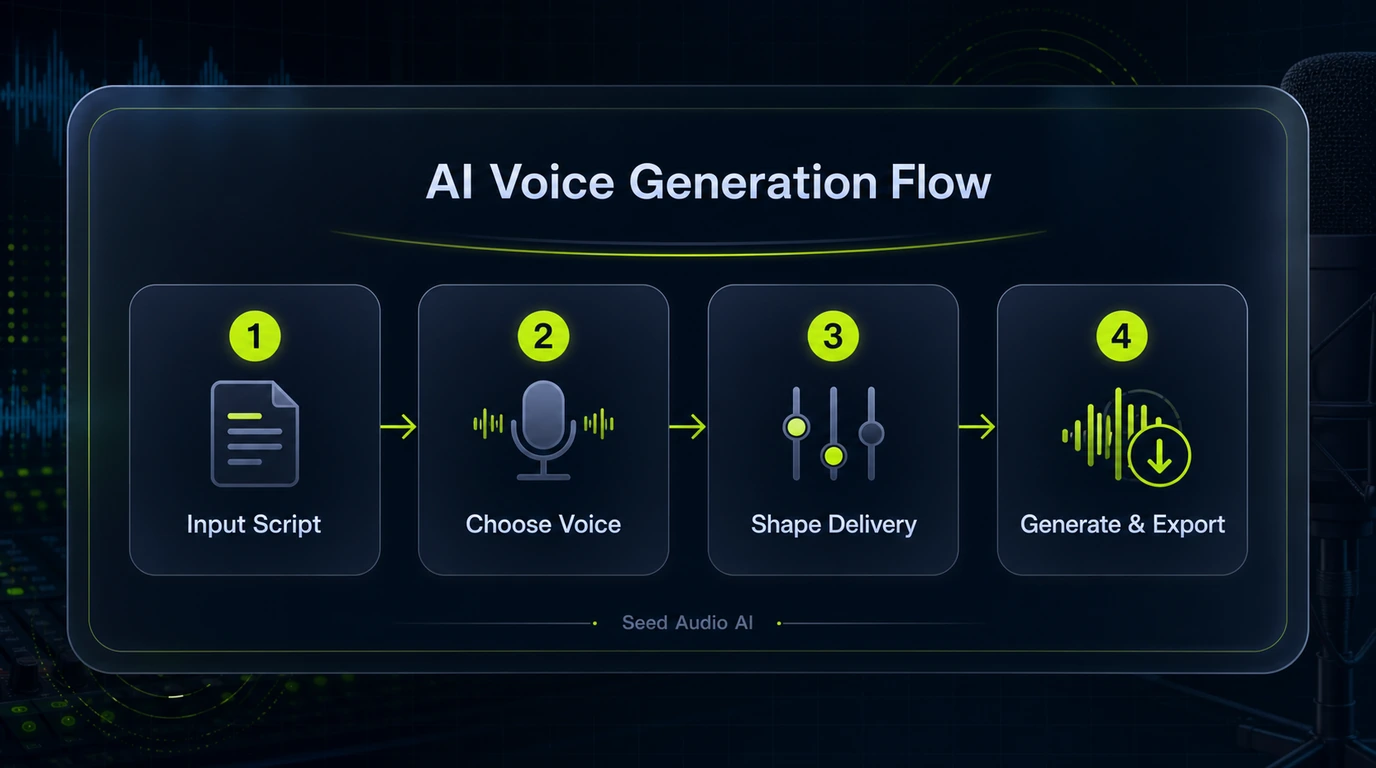
Paste the exact script you want to hear, whether it is narration, a voiceover, a podcast segment, lesson audio, or a product read.
Pick the voice that fits the script and the listening context.
Use the available controls to shape pace, tone, and presentation before you generate the draft.
Preview the result, download it, share it, or return to it later through history where available.
Text-to-speech use cases
Use Seed Audio AI text-to-speech for scripted voiceovers, narration, podcast segments, audiobook drafts, lessons, and product explainers.
Turn a short script into a review-ready voice track for explainers, tutorials, reels, and social videos.
Create Video VoiceoverAudiobookGenerate chapter audio from manuscript text so you can review pacing, clarity, and voice fit before final narration.
Create Audiobook DraftPodcastCreate intros, host reads, recaps, and narrated segments from one text-to-speech workflow.
Create Podcast DraftAdsTest multiple ad scripts and product explainers without booking a new recording session for every revision.
Create Ad VoiceoverHow to get better results
The basics are simple, but small script and delivery decisions make a big difference. Use this workflow to reduce avoidable re-generation.
Write the script the way you want it read. Clear punctuation, line breaks, and pronunciation cues usually produce cleaner first-pass audio.
Choose the voice that fits the content type, whether you need narration, an explainer read, lesson audio, a podcast segment, or a character-style draft.
Use the available controls to shape pace, tone, and emphasis instead of regenerating the same script without enough direction.
Preview the result, note the lines that need work, then update the script or settings and generate the next version.
Text-to-speech comparison
Traditional recording is still important for final performance work. Text-to-speech is especially useful when you need a browser-based draft workflow for scripts that are still being reviewed.
| Feature | Traditional Recording | Seed Audio AI text-to-speech |
|---|---|---|
| Best fit | Final performances, directed sessions, and live talent work | Script review, draft narration, and repeatable voiceover generation in the browser |
| Setup | Talent, room, mic, scheduling, and engineering vary by project | Paste a script, choose a voice, adjust delivery, and generate audio |
| Revision cycle | Script changes may require pickups or a new session | Edit the text or settings and generate a new draft |
| Early draft turnaround | Depends on scheduling and production workflow | Immediate draft workflow once the script is ready |
| Cross-market review | Usually separate casting and review paths per market | Can help teams prototype alternate script and audio drafts from one workspace where supported |
| Repeatability | Delivery can vary from take to take | Reusing the same voice and settings makes version comparisons easier |
Voice preview
Compare available voices, preview tone and pacing, and pick the best match for your script. Voice availability may vary by language, plan, and product surface.
These are example workflows for turning scripts into reviewable voice audio in the browser.
Turn a campaign script into a draft voiceover, then adjust delivery before review.

Generate lesson audio from a script so reviewers can hear clarity and pacing before final recording.

Create intros, host reads, and scripted segments with reusable voice direction.

Turn chapter text into draft narration and refine pacing before production decisions.

Compare multiple ad scripts and product-demo reads without booking a new recording session for every revision.

Convert guides and help-center scripts into audio drafts for internal review, enablement, or accessibility planning.
Text-to-Speech FAQ
Answers about Seed Audio AI text-to-speech, voice selection, delivery controls, downloads, sharing, permissions, and commercial use.
Paste a script, choose a voice, adjust delivery, and generate spoken audio in your browser.
Start Text-to-Speech →